
How to Display Color and Image Swatches on the Bundle Widget
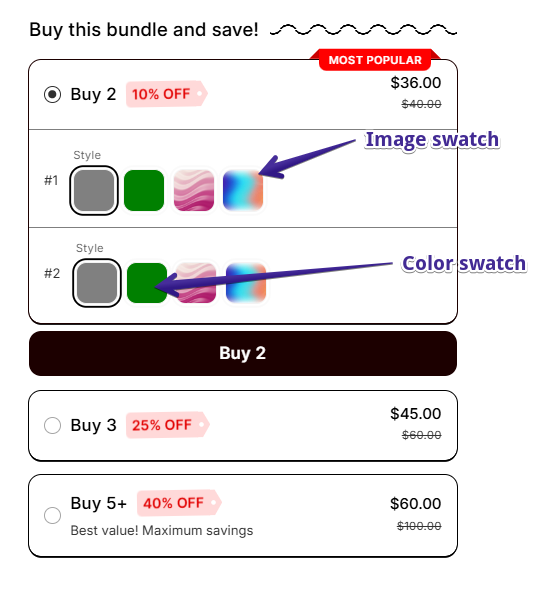
Unlimited Bundles & Discounts app has the feature to show product variants as Color Swatches or Image Swatches on the Bundle widget, providing customers with a more visual and user-friendly way to select product variants.
Swatches are enabled by default, but you can customize or disable them at any time.
Note: The swatches feature automatically detects primary colors. For example: red, green, blue.
How It Works
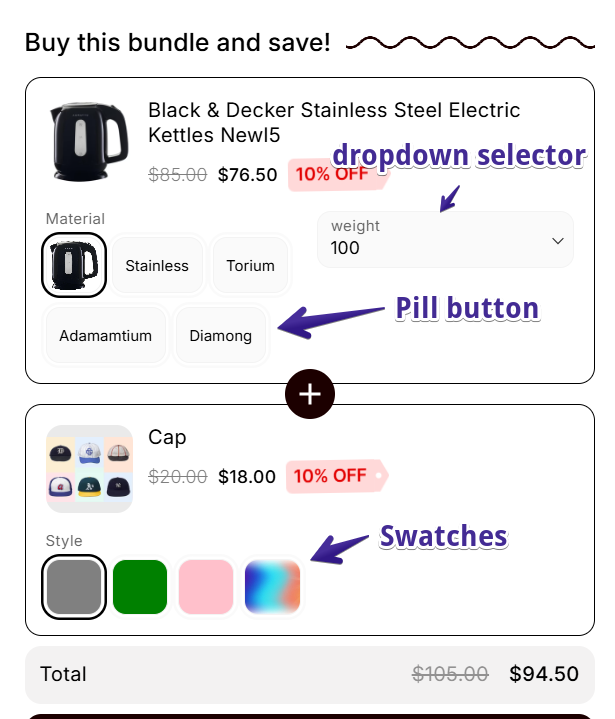
Color and Image Swatches provide customers with a more visual and intuitive way to select product variants on the Bundle widget. Instead of choosing variants from a dropdown menu, customers can select options using color swatches, image swatches, or text buttons.
When you bundle a product, the app automatically detects its product options (such as Color, Size, Material, or any custom option) along with their variant values. These are then added to the Manage Swatches page, where you can choose how each value is displayed on the Bundle widget.
If a variant value is not configured with a color or image, it will automatically be displayed as a text button (pill), ensuring that all variants remain selectable.
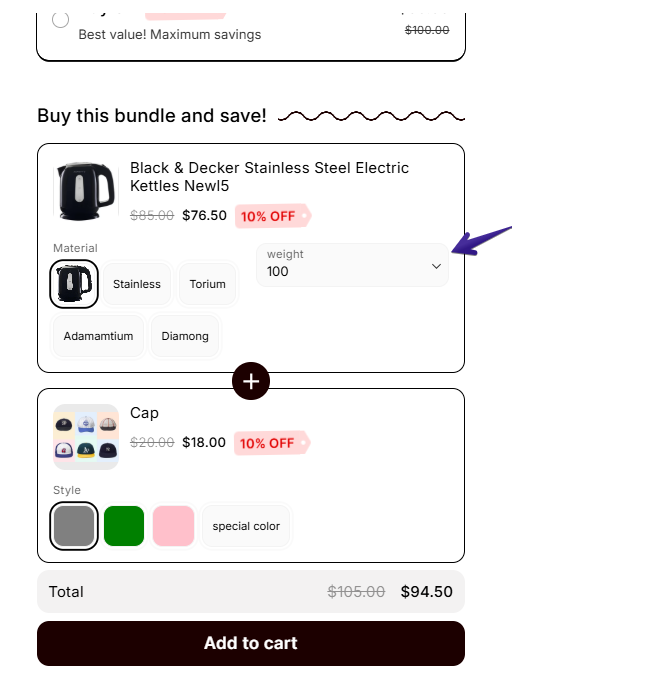
For cases where all variant values of a product option have no swatch, the dropdown selector is displayed.
Automatic Synchronization
The Unlimited Bundles & Discounts app automatically keeps your Swatches manager in sync with the products included in your Bundle offers.
Whenever you create a Bundle or add a new product to an existing Bundle, the app automatically imports the product's option names and variant values into Appearance → Swatches → Manage Swatches.
For example, if you bundle a product with the following options:
- Color: Black, White, Blue
- Size: Small, Medium, Large
The app will automatically list these options in the Swatches manager, allowing you to assign a color or image to each variant value. There is no need to create product options or variant values manually.
Any new variant values added to bundled products will also appear in the Swatches manager, making them available for configuration.
Exception: if a Bundle applies to an entire collection or to all products, the app can't know in advance which exact products it applies to, so their options won't pre-load automatically. In that case, use Adding a Product Option Manually to load them from any product.
Enable or Disable Swatches
If you would like to show variant options as dropdown menus instead of swatches, you can disable the swatch feature from the Bundle widget design settings.
Steps
- Open the Unlimited Bundles & Discounts app.
- Go to Appearance → Design.
- Click the Open Live Editor button.
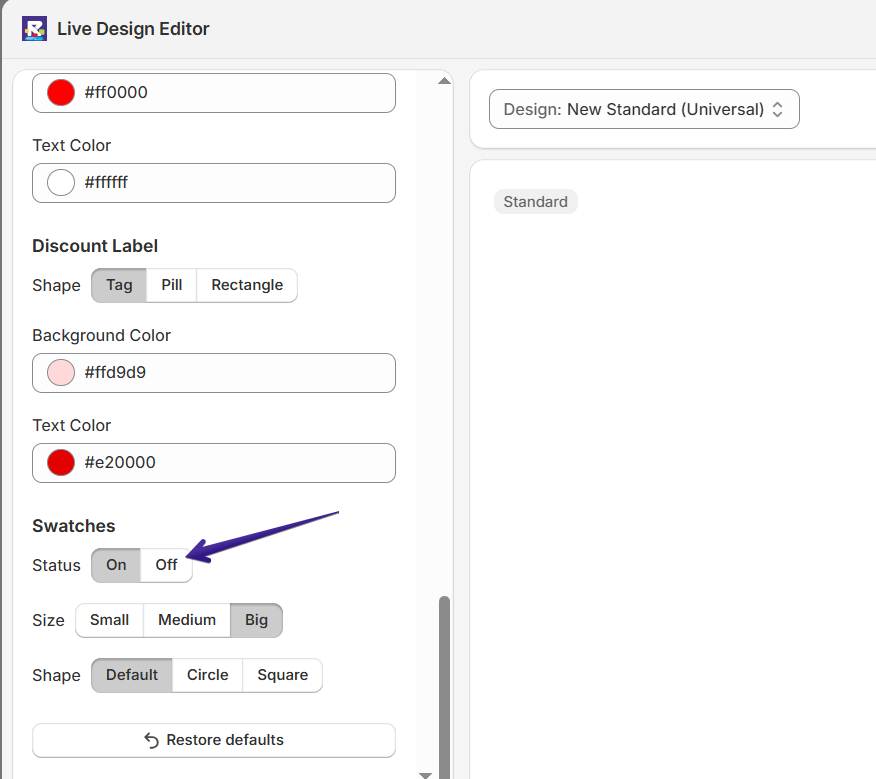
- Locate the Swatches setting.
- Toggle the setting Off.
- Click Save.
Screenshot:
Note: When swatches are disabled, all product variants are displayed as standard dropdown selectors on the Bundle widget.
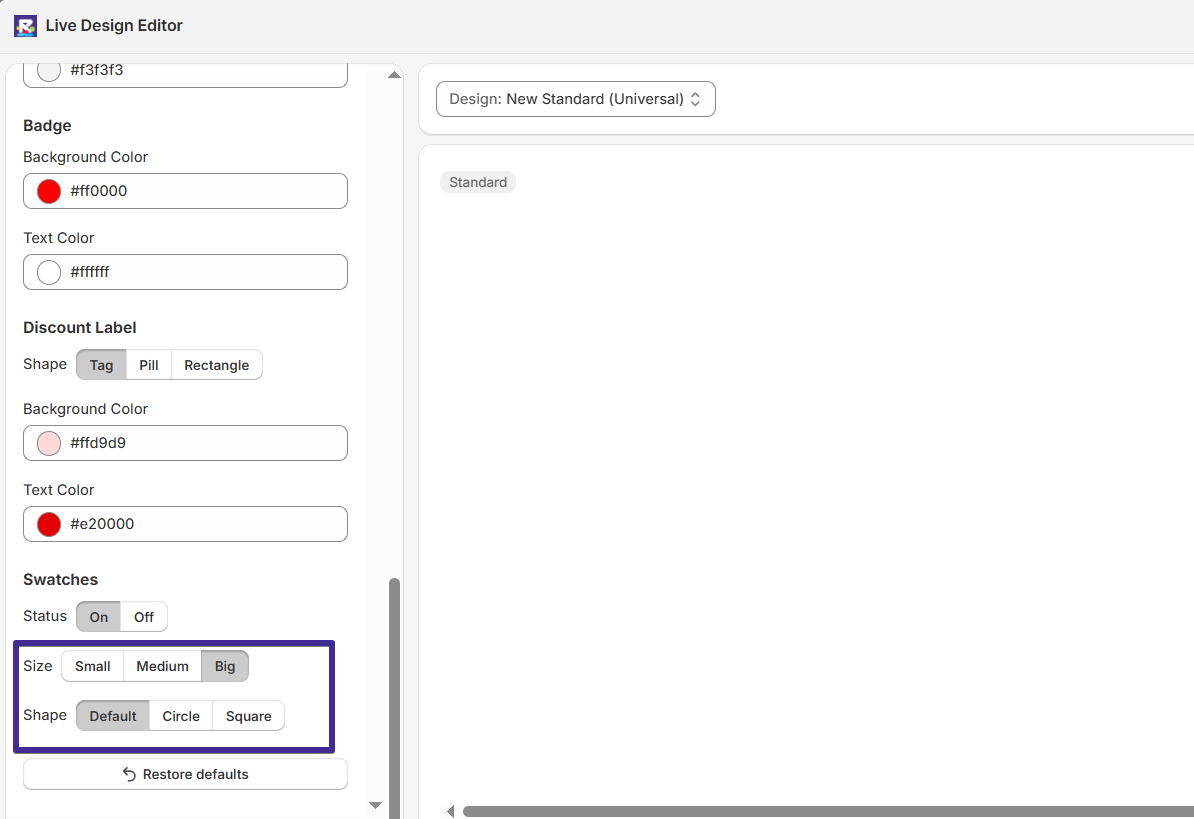
The following settings are available:
Status
Controls whether swatches are displayed on the Bundle widget.
- On – Displays product variants as color, image, or text swatches.
- Off – Displays product variants as standard dropdown menus instead.
In addition to enabling or disabling swatches, you can customize how they appear on the Bundle widget to better match your store's design.
Size
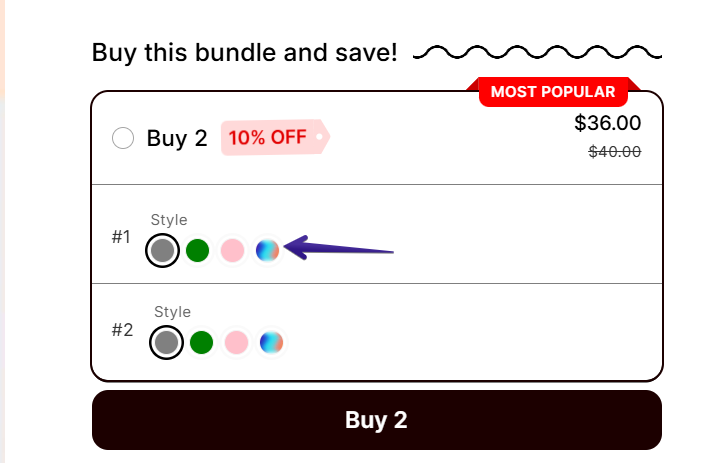
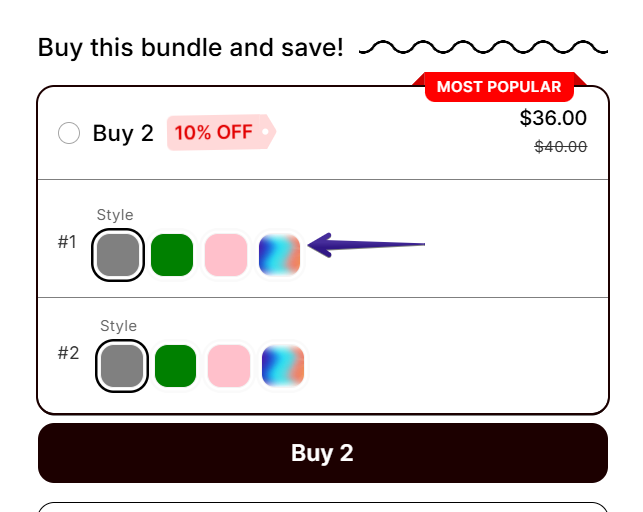
Controls the size of the swatches displayed on the Bundle widget.
You can choose from:
-
Small – Displays compact swatches, ideal for stores with limited space.
-
Medium – Displays medium-sized swatches for a balanced appearance.
-
Big – Displays larger swatches, making them easier for customers to see and select.
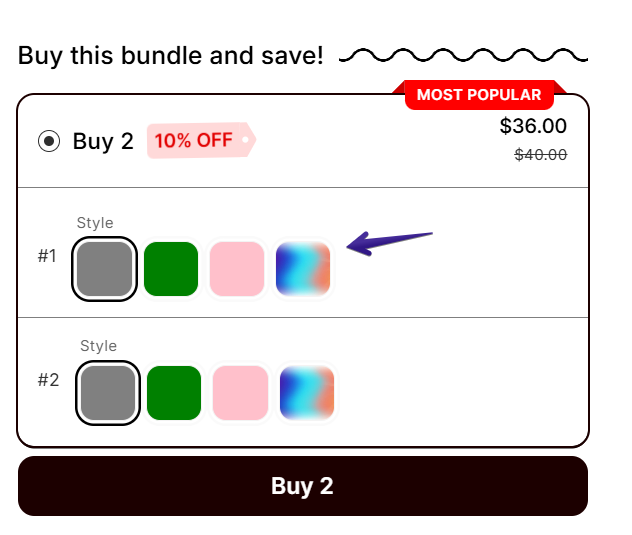
Choose the size that best fits your store's design and customer experience.
Shape
Controls the appearance of each swatch.
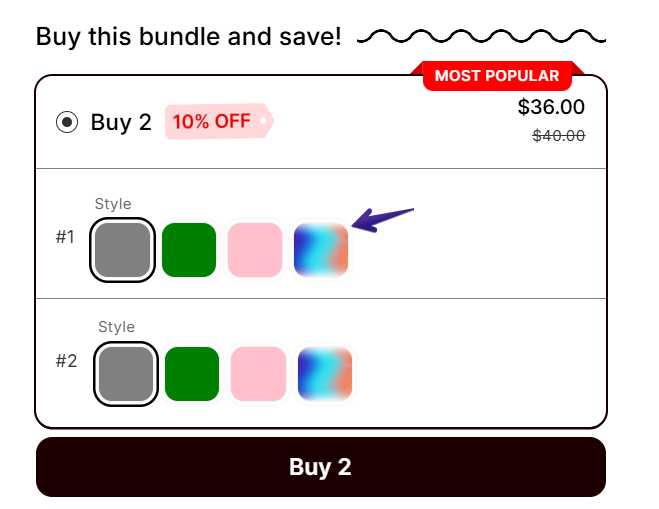
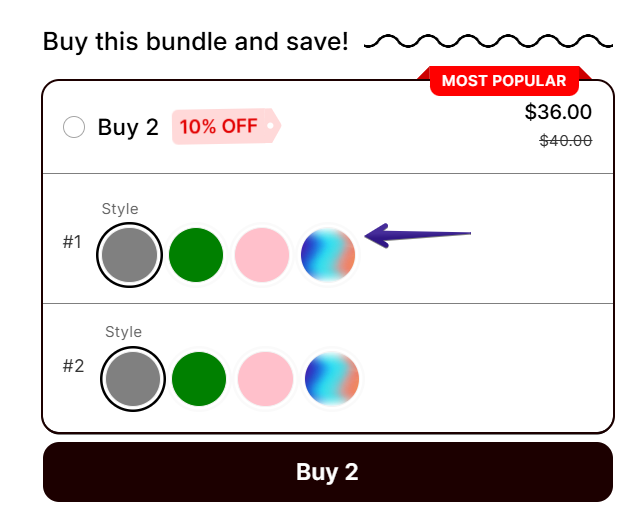
Available options include:
-
Default – Uses the app's default rounded-square style.
-
Circle – Displays variants as circular swatches.
-
Square – Displays variants as square swatches.
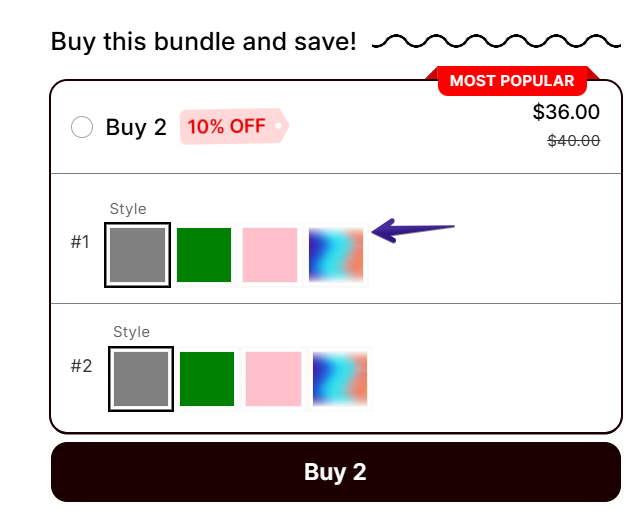
Note: The selected shape is applied to all swatches in the selected Bundle design.
Managing Swatches
The app automatically detects all bundled products and imports their product option names and option values into the Swatches manager.
To access the Swatches manager:
- Open the Unlimited Bundles & Discounts app.
- Go to Appearance → Swatches.
- Click Manage Swatches.
Screenshot:
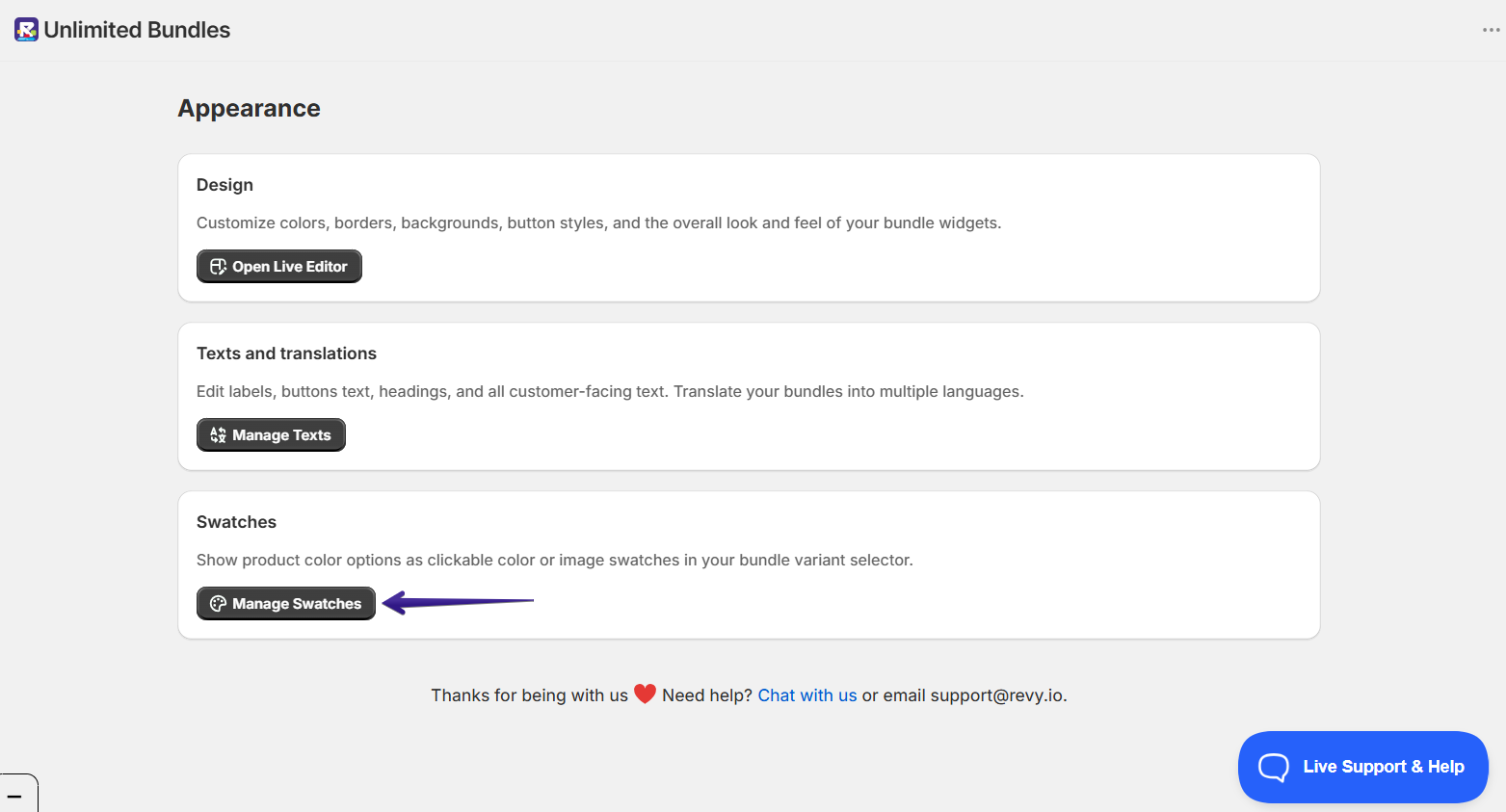
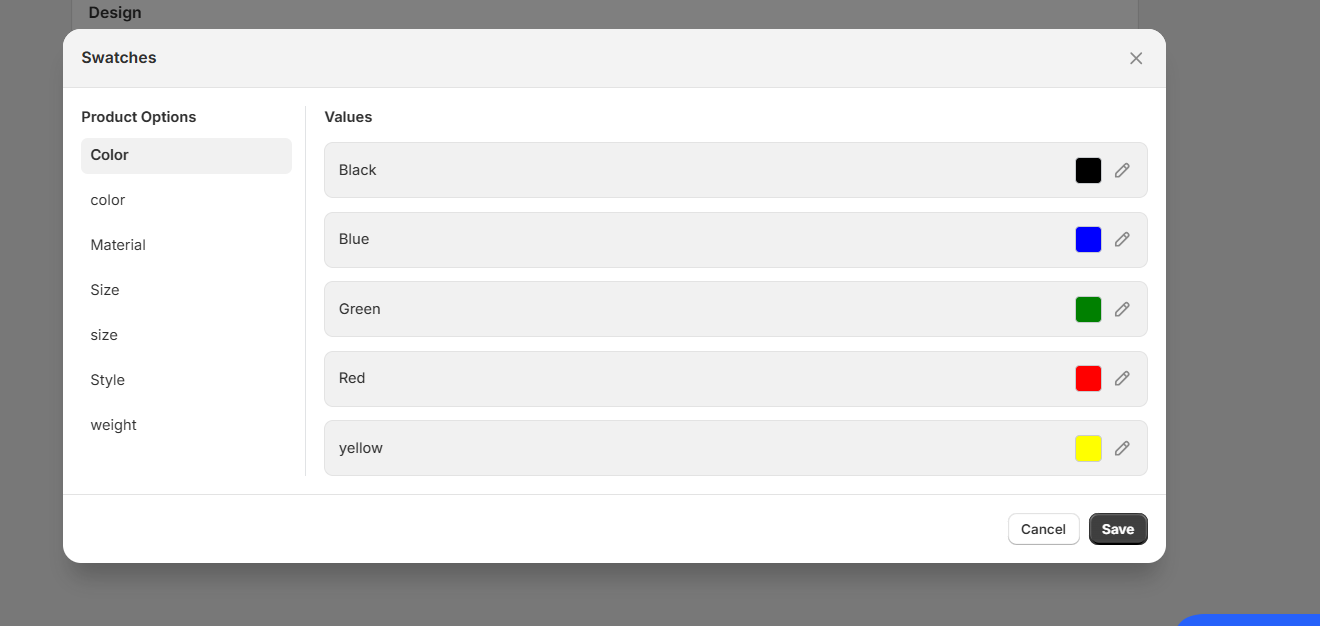
The Swatches configuration page looks like the following:
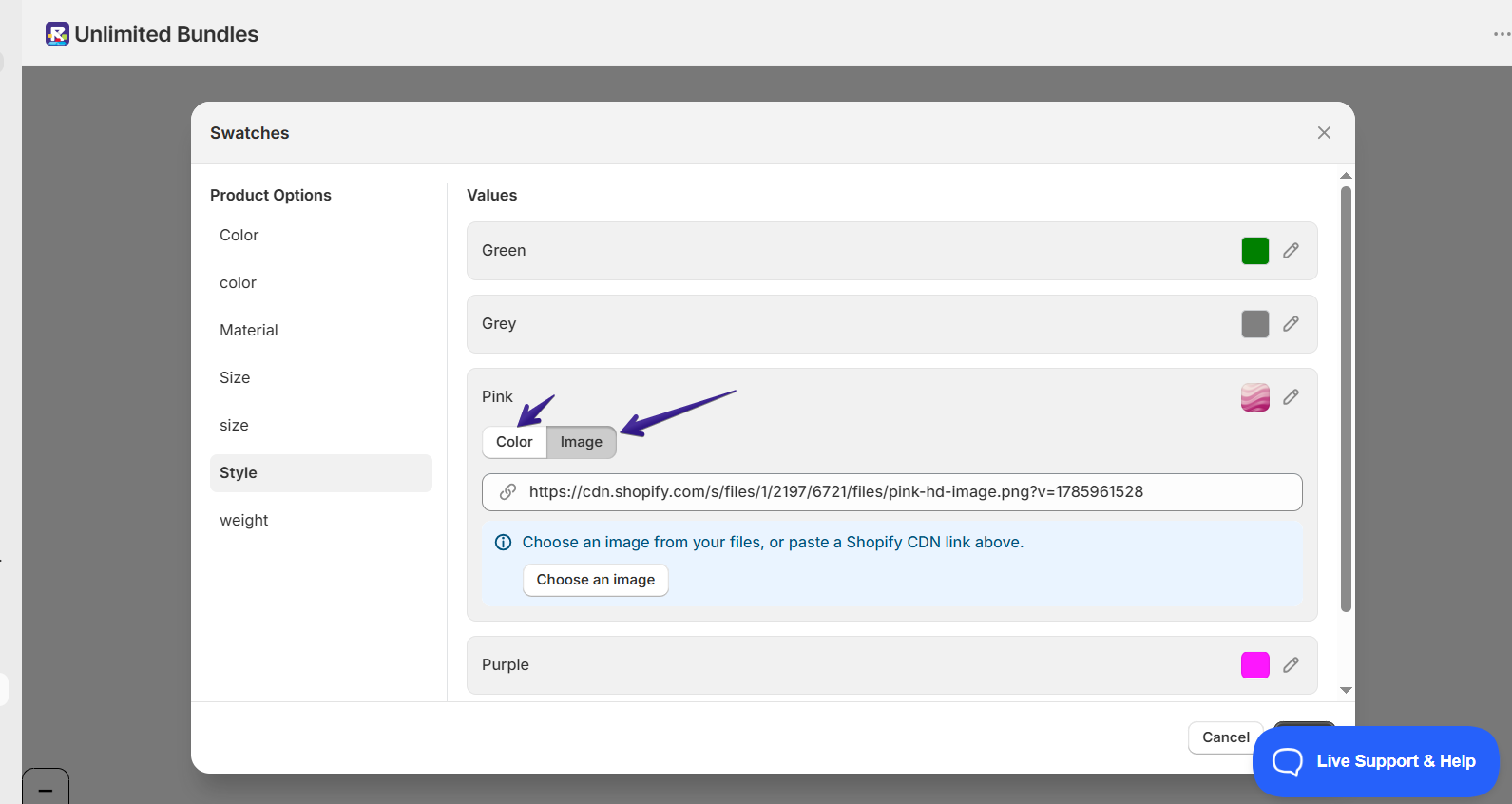
From this page, you can configure how each variant value is displayed on the Bundle widget, except for primary color variants, which default to their known color.
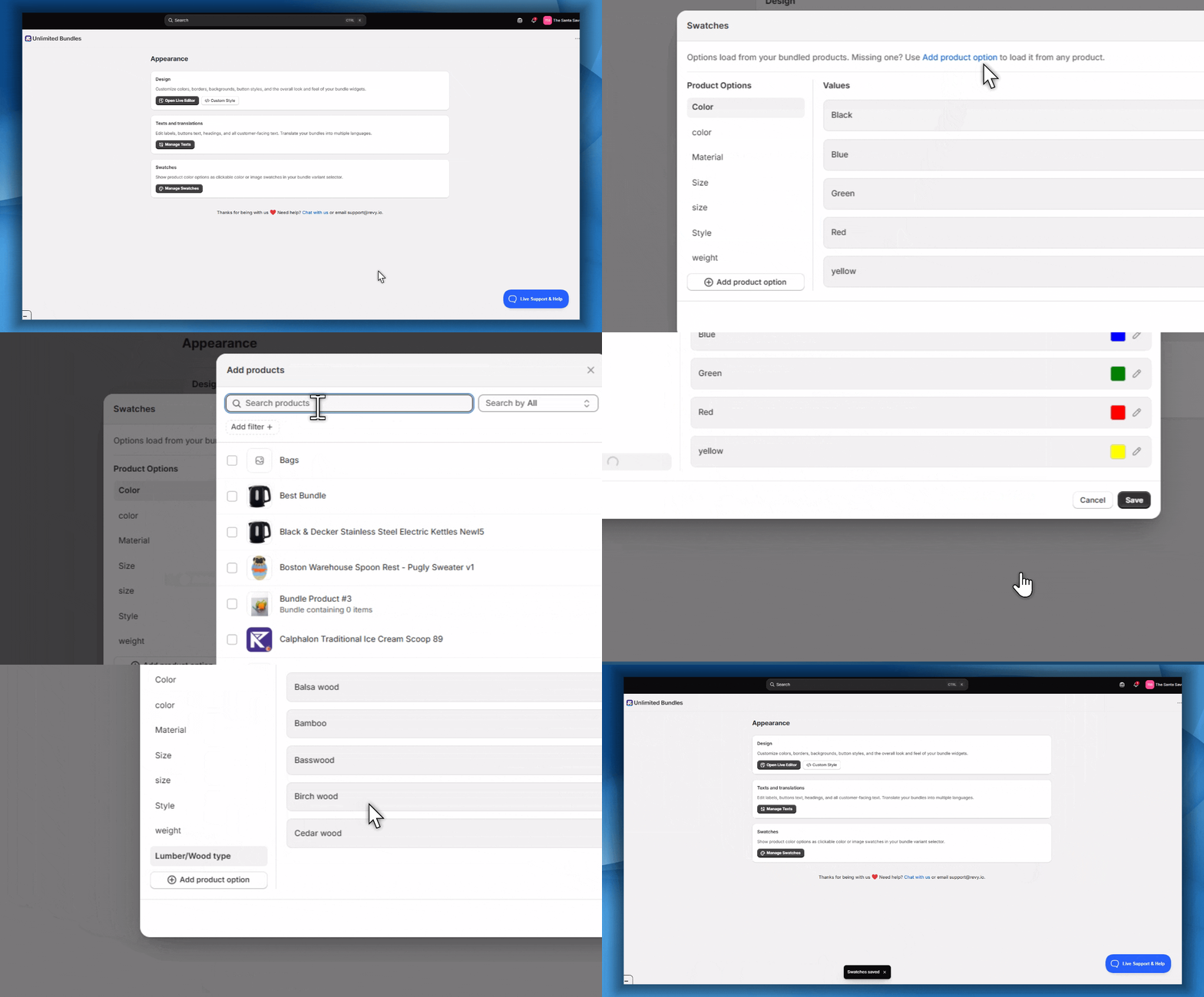
Adding a Product Option Manually
By default, the Swatches manager only lists product options that belong to products already included in a specific Bundle. If a Bundle is configured for an entire collection or for all products, the app can't know in advance which exact products it applies to, so their options won't automatically appear in the Swatches manager.
To add options manually:
- Open the Unlimited Bundles & Discounts app.
- Go to Appearance → Swatches → Manage Swatches.
- Click Add product option.
- Search for and select the product(s) whose options you want to add. This is especially useful when a Bundle applies to an entire collection or to all products, since those options don't pre-load automatically.
- Load the product(s) to bring their options into the Swatches manager.
- Save your changes.
The new product option (and its variant values) will now appear under Product Options in the Swatches manager, ready to configure as a color or image swatch. Here is an example:
Displaying Color Swatches
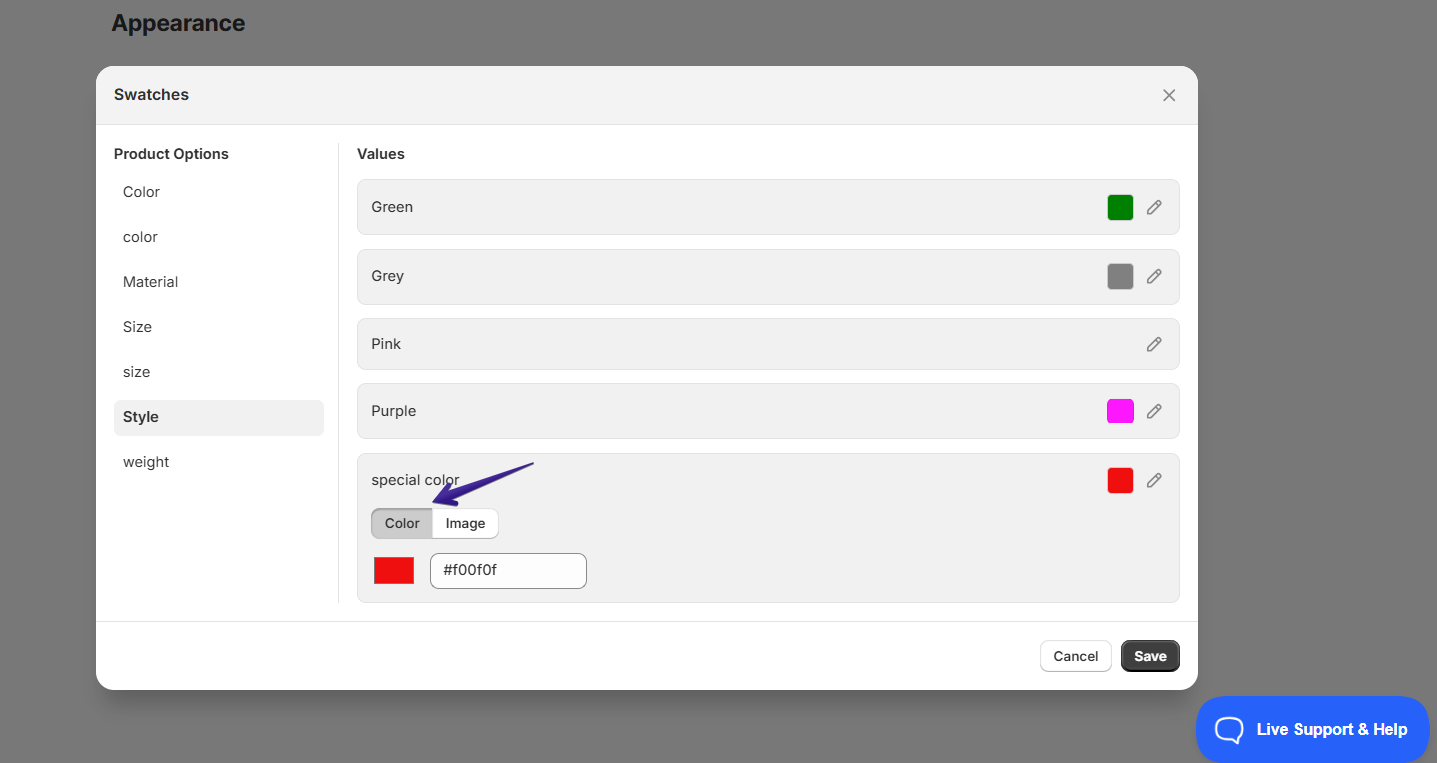
To display a variant as a color swatch:
- Open the Manage Swatches page.
- Find the product option (for example, Style).
- Locate the desired option value.
- Select Color as the display type.
- Choose the color you would like to represent that variant.
- Save your changes.
When customers view the Bundle widget, that variant will now appear as a clickable color swatch instead of text.
Screenshot:
Displaying Image Swatches
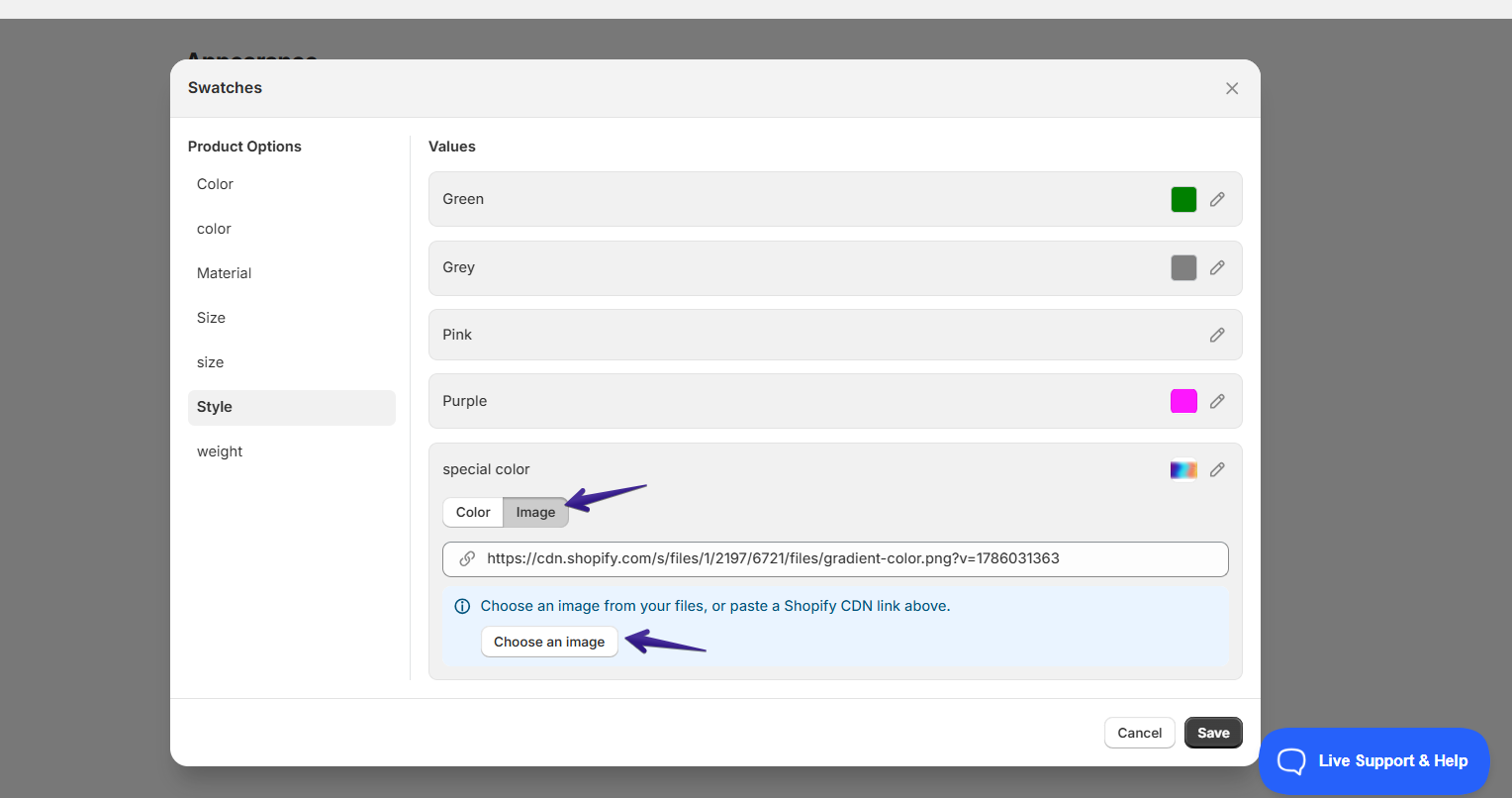
If you prefer to display product variants using images instead of colors:
- Open the Manage Swatches page.
- Locate the desired product option value.
- Change its display type to Image Swatch.
- Upload or select the image you want to use.
-
Save your changes.
Image swatches are especially useful for products with different patterns, prints, textures, or visual designs where a simple color cannot accurately represent the variant.
Screenshot:
Default Behavior
When product options have no swatches detected, the dropdown variant selector will be shown for those product options. Screenshot:
If a variant value does not have a color or image configured, the app automatically falls back to displaying it as a button with the variant name (pill).
For example, a variant without a configured swatch:
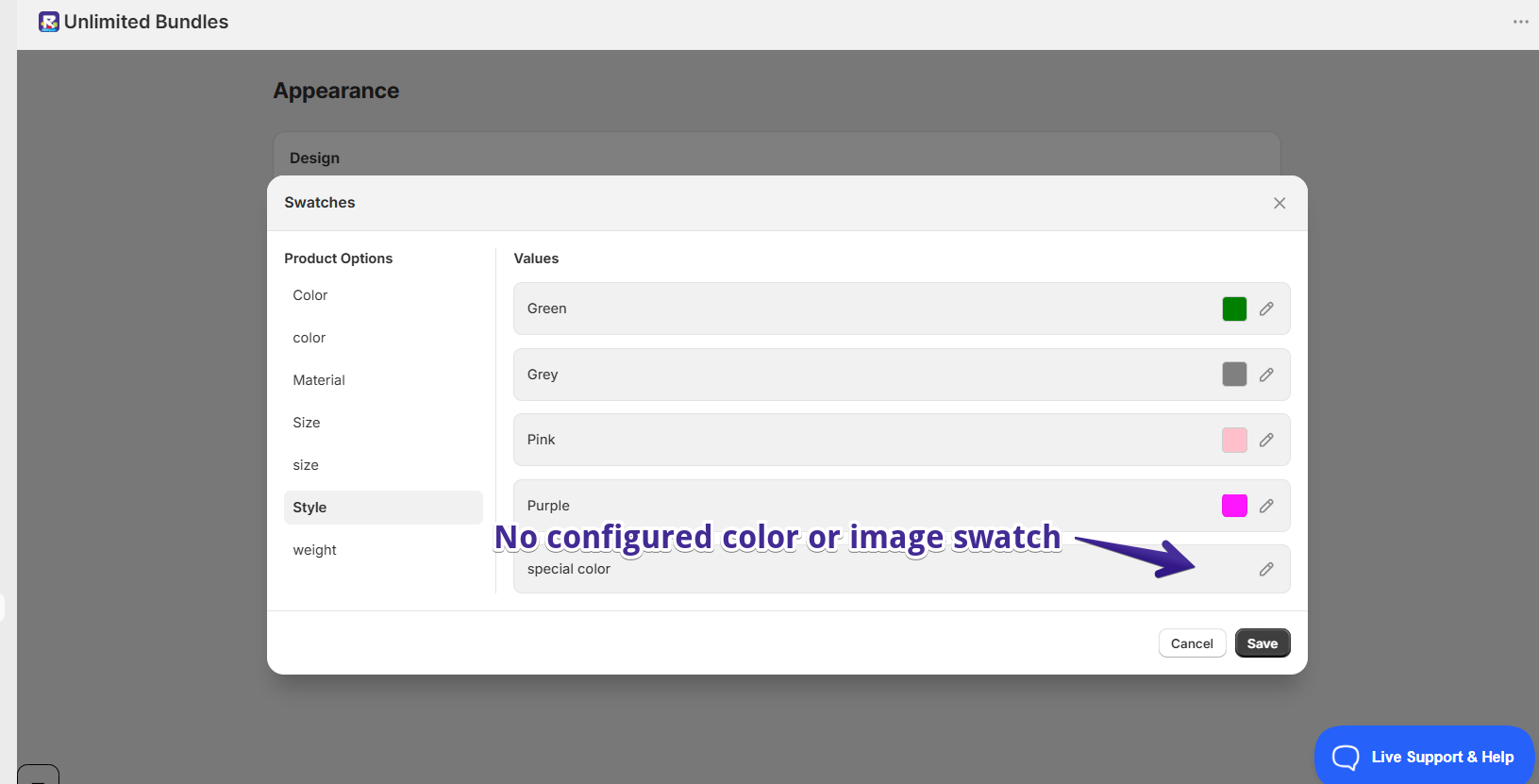
Will appear on the Bundle widget like this:
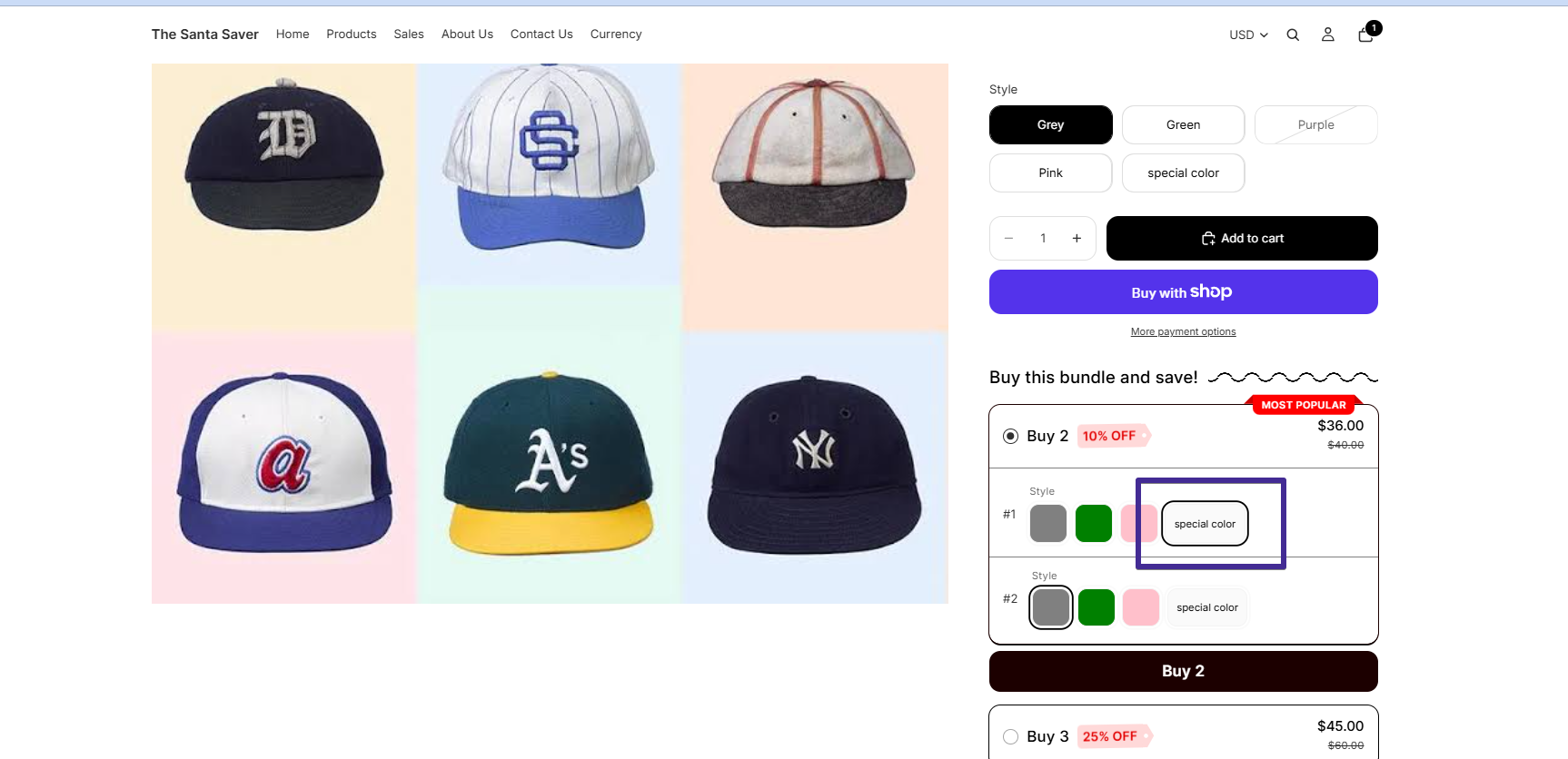
This ensures every variant remains selectable even if no swatch has been configured.
Troubleshooting
My swatches are not showing on the Bundle widget
Please check the following:
- Ensure Swatches are enabled under Appearance → Design → Open Live Editor.
- Verify that the product has variants.
- Confirm that the product is included in a Bundle offer.
- Save your changes after editing the design settings.
- Refresh your storefront or clear your browser cache before testing again.
My variant is showing as a text button instead of a color or image
This usually means that no Color Swatch or Image Swatch has been assigned to that variant value.
Go to Appearance → Swatches → Manage Swatches, locate the variant value, assign a color or image, and save your changes.
I can't find my product options in the Swatches manager
The Swatches manager only lists product options for products that are included in a Bundle offer.
If you've recently added a product to a Bundle, allow a few moments for the app to synchronize the product options. If the options still don't appear, try refreshing the page.
If your Bundle applies to a collection or to all products, options won't pre-load automatically. Use Adding a Product Option Manually to load them from any product, then create their swatches.
My changes aren't reflected on the storefront
If your updates don't appear immediately:
- Make sure you've clicked Save.
- Refresh the storefront.
- Test in an incognito/private browser window.
- Clear your browser cache if necessary
Tips
- Swatches are enabled automatically for all created Bundle widgets (except for the Bundle Builder page for Mix and Match Collection; they are currently not supported there).
- The app automatically imports product option names and values from your bundled products, so there is no need to create them manually.
- You can mix Color Swatches, Image Swatches, and default text buttons within the same product options if needed.
- Any changes made in the Swatches manager are reflected on the Bundle widget after saving.
- Use Adding a Product Option Manually to add swatches for Bundles set for a collection or all products, since those options don't pre-load automatically.
If you have any questions or encounter any challenges, please let us know at [email protected] , and we will be happy to help ;)